A quick-start guide to getting you up and running.
What is Dextr?
Dextr gives you a smarter way to manage your personal contacts. It blends the basics of your phone’s contacts app with the most useful parts of a Customer Relationship Management (CRM) application. Even if you’ve never used a CRM before, the idea is straightforward: Dextr helps you organize both new and existing contacts by letting you record when, where, and how you met someone–as well as tag them, link them to events and places, and map their connections to other people.
How to Use Dextr: A 30,000-Foot Overview
Dextr is designed to adapt to a wide range of contact-management styles, so there’s no single “right” way to use it. That said, a handful of screens and features will become part of your everyday workflow. We’ll walk through those below.
Home Screen
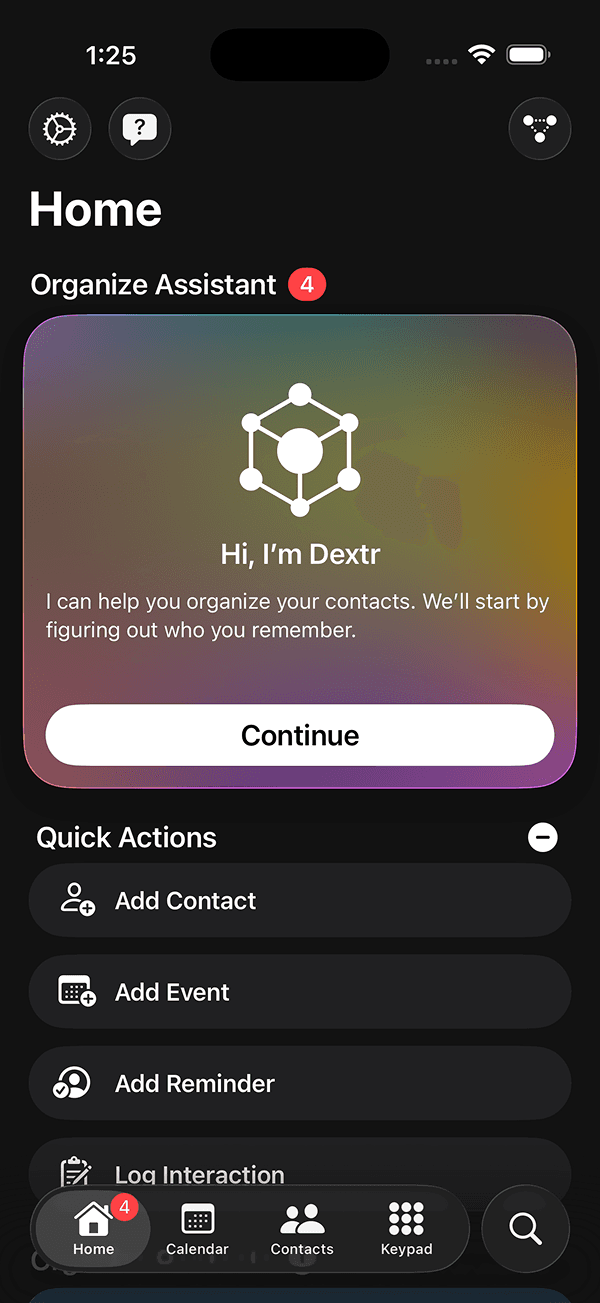
When you open the app, you’ll land on the Home screen. This is the central hub for quick actions and helpful insights about your contacts. As you use Dextr to organize your address book, this screen becomes more informative. Over time, you’ll see scheduled reminders, upcoming events, recent interactions, and other useful details.
Settings, Support, and Network Map
Just above the “Home” heading, you will see three icons; From left to right they are a gear icon, a chat bubble with a question mark icon, and an icon of three interconnected dots in the shape of an inverted triangle.
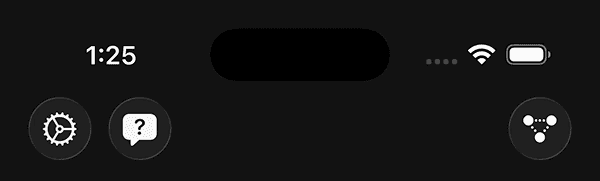
The gear icon will take you to Dextr’s settings. This is also where you can find contacts that you have previously archived (discussed below).
The next icon will open our live chat support where you can get help using Dextr, report buggy app behavior, or send us a friendly greeting.
The final icon will open a visual representation of the relationships you set within your contacts, a feature that we will cover in more detail below.
Organize Assistant
Also on the Home screen is the Dextr Context Builder, also called the Organize Assistant. This tool makes it easy to organize your contacts by asking simple questions about them. For example, the first question for all imported contacts is “Do you remember this contact?” so that Dextr only follows up on people you actually recall.
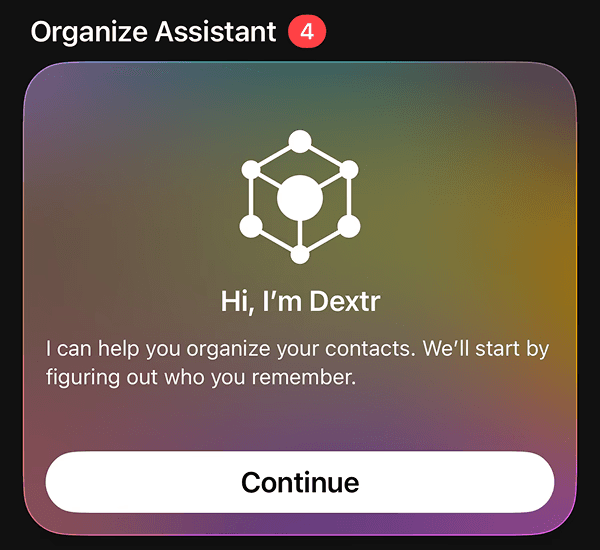
From there, each question adds helpful details and builds a richer profile. The more you answer, the more complete your contact entries become. All information about your contacts stays on your device and is never shared with us. Data security and privacy is a core principle of how Dextr works.
Quick Actions
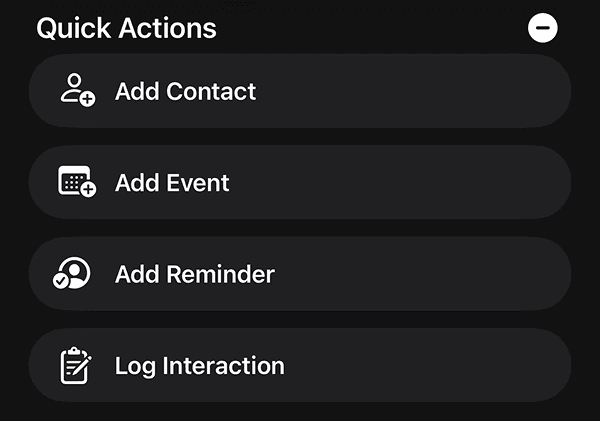
Just below the “Home” heading, we have placed buttons for adding a new contact, creating an event, adding a reminder, and logging an interaction.
Buttons:
Add Contact: As the name suggests, this is where you can enter in a new contact. If you have sync enabled, contacts that you add here will also be added to your Apple contacts.
Add Event: With Dextr, you can create events and link the people you meet to those events. This helps you remember where and how you met someone and lets you see everyone you connected with at a particular occasion. An event can be anything from a business conference to a birthday party to a casual night out with friends.
Reminder: This is a quick way to set a one-time or recurring reminder associated with contact. When a reminder is triggered, you will receive a push notification to let you know. Future, current, and overdue reminders are also displayed on the Home screen.
Interaction: Logging an Interaction is a way to take notes about a moment you had with a contact. These are especially useful for saving important details with customer support calls or anything that might require referencing a specific interaction at a later time.
*Pro-tip: Your can condense these buttons to a “+” icon in the top right corner by going to Settings, then “Sort & Display.”
Organize Contacts
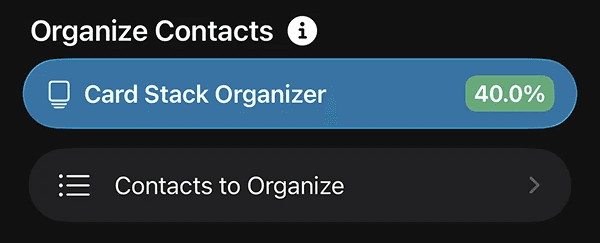
Below the Organize Assistant, you will find the "Organize Contacts" section that with four tools: The Card Stack Organizer, Contacts to Organize, Relation Types, and Tags. We'll dig into each below.
Card Stack Organizer
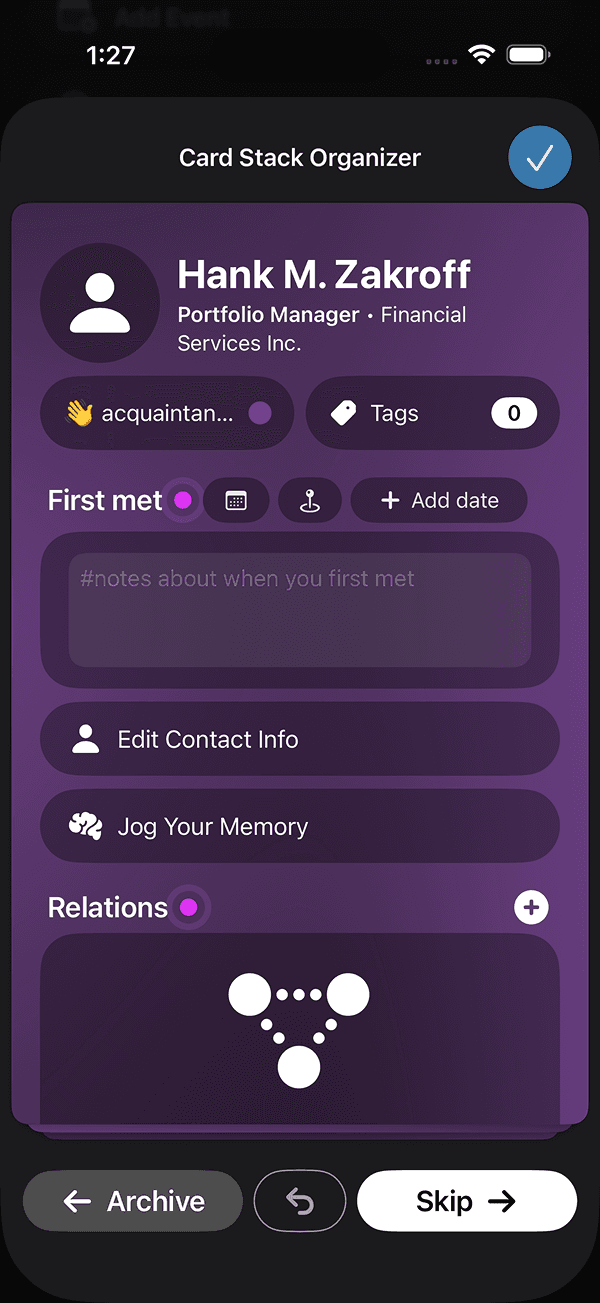
Below the Context Builder, you’ll find the Card Stack Organizer. Like the Context Builder, this tool highlights contacts with missing information. Instead of asking guided questions, it gives you a quick way to update several fields at once.
Contacts to Organize
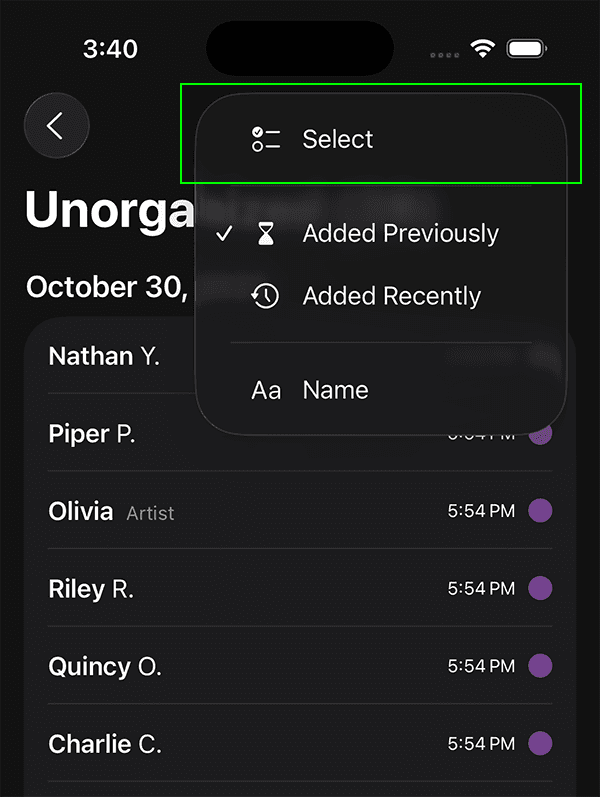
As you scroll down, you’ll see a menu button that directs to all remaining contacts you haven’t organized or answered questions about yet. This screen is ideal for making bulk edits. Tapping the menu icon in the upper right lets you select multiple contacts at once. From there, you can add or remove tags, set relationships, or archive several contacts in a single action.
Places
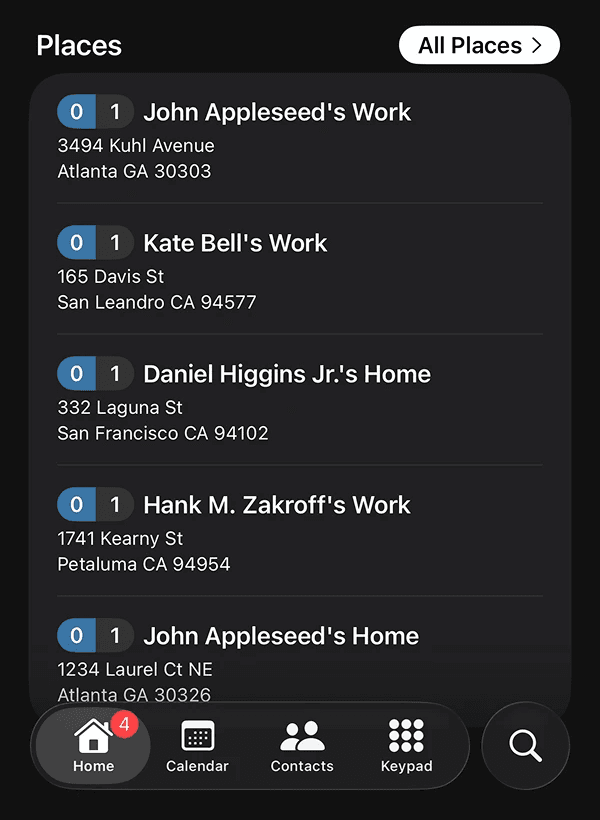
At the bottom of the Home screen, you’ll see “Places” or “Nearby Places.” This section shows the locations linked to your contacts, such as addresses or places where you’ve noted meeting someone. If you’re close to one of these locations, it will appear as “Nearby Places.” Tapping a place reveals more details about it, including the contacts connected to that location.
Stay Tuned
Now that you have an overview of the basics, we will soon be adding more how-to and best practices articles that will be linked below. Stay tuned for more and please don't hesitate to reach out to our Chat Support with any questions or concerns.
Updated:
January 20, 2026